Groups
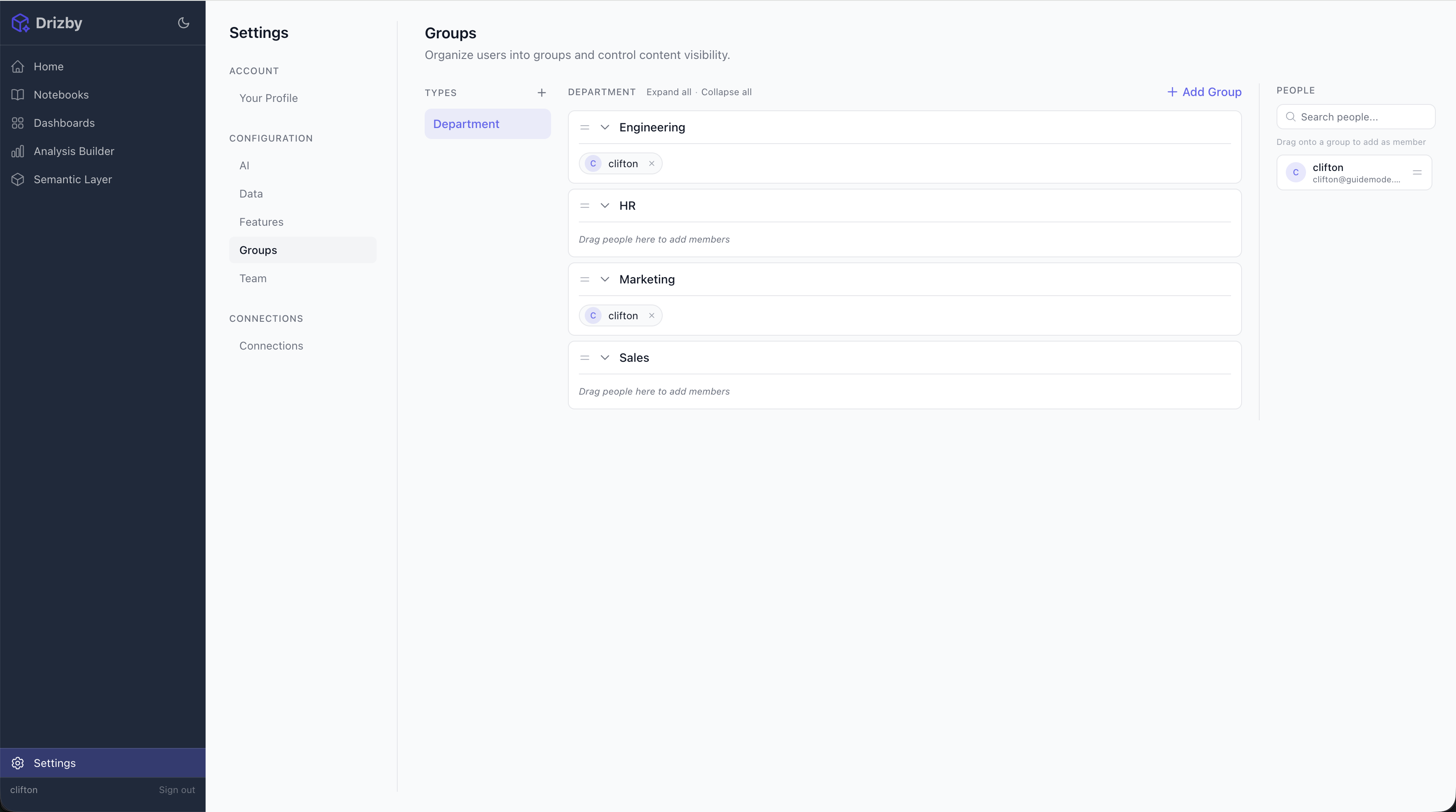
Groups control which data users can see. When a cube defines security context rules based on groups, the semantic layer automatically filters query results based on the user’s group membership.
This enables multi-tenant data access within a single Drizby instance.
How Groups Work
Section titled “How Groups Work”Groups are organized into Group Types (taxonomies) and Groups (values within each type).
For example:
- Group Type:
Departmentwith groups:Engineering,Sales,Marketing,HR - Group Type:
Regionwith groups:EMEA,APAC,Americas
Users can belong to multiple groups across different types. When a user runs a query, their group memberships are passed to every cube’s sql function as part of the Security Context.
Security Context
Section titled “Security Context”Every cube query receives a QueryContext with a securityContext object containing the user’s group information:
interface SecurityContext { organisationId: number // Always 1 (single-tenant) userId: number // The authenticated user's ID role: 'admin' | 'member' // User's role groups: Record<string, string[]> // Group memberships by type groupIds: number[] // Flat array of group IDs}Example Security Context
Section titled “Example Security Context”A user who belongs to Engineering and Sales departments, and the EMEA region:
{ organisationId: 1, userId: 42, role: 'member', groups: { Department: ['Engineering', 'Sales'], Region: ['EMEA'] }, groupIds: [1, 3, 7]}Filtering Data by Groups in Cubes
Section titled “Filtering Data by Groups in Cubes”Basic Pattern: Filter by Group Names
Section titled “Basic Pattern: Filter by Group Names”The most common pattern is filtering data based on the user’s group names. Access groups via ctx.securityContext.groups['TypeName']:
import { eq, inArray, sql } from 'drizzle-orm'import { defineCube } from 'drizzle-cube/server'import type { QueryContext, BaseQueryDefinition, Cube } from 'drizzle-cube/server'import { employees, departments } from './schema'
let employeesCube: Cube
employeesCube = defineCube('Employees', {  title: 'Employee Analytics',  description: 'Employee data filtered by department group membership',
  sql: (ctx: QueryContext): BaseQueryDefinition => {    const depts = ctx.securityContext.groups?.Department
    // Admins see all data    if (ctx.securityContext.role === 'admin' || !depts || depts.length === 0) {      return { from: employees }    }
    // Members only see employees in their departments    return {      from: employees,      where: inArray(        employees.departmentId,        sql`(SELECT id FROM departments WHERE name IN (${sql.join(depts.map(d => sql`${d}`), sql`, `)}))`      )    }  },
  dimensions: {    name: { name: 'name', title: 'Name', type: 'string', sql: employees.name },    // ...  },  measures: {    count: { name: 'count', title: 'Count', type: 'count', sql: employees.id },    // ...  },}) as Cube
export { employeesCube }
Pattern: Safe Defaults
Section titled “Pattern: Safe Defaults”Always handle the case where a non-admin user has no groups — they should see no data rather than all data:
sql: (ctx: QueryContext): BaseQueryDefinition => {  const regions = ctx.securityContext.groups?.Region
  // Admins bypass all filters  if (ctx.securityContext.role === 'admin') {    return { from: orders }  }
  // Non-admins with no region groups see nothing  if (!regions || regions.length === 0) {    return {      from: orders,      where: sql`1 = 0`  // Always false — returns no rows    }  }
  // Filter to user's regions  return {    from: orders,    where: inArray(orders.region, regions)  }}
Pattern: Direct Column Match
Section titled “Pattern: Direct Column Match”If your table has a column that directly matches group names (e.g., a region text column):
sql: (ctx: QueryContext): BaseQueryDefinition => { const regions = ctx.securityContext.groups?.Region if (!regions || regions.length === 0) { if (ctx.securityContext.role === 'admin') return { from: sales } return { from: sales, where: sql`1 = 0` } } return { from: sales, where: inArray(sales.region, regions) }}Pattern: Multiple Group Types
Section titled “Pattern: Multiple Group Types”You can combine filters from multiple group types:
sql: (ctx: QueryContext): BaseQueryDefinition => {  const depts = ctx.securityContext.groups?.Department  const regions = ctx.securityContext.groups?.Region
  if (ctx.securityContext.role === 'admin') {    return { from: projects }  }
  const conditions = []
  if (depts && depts.length > 0) {    conditions.push(inArray(projects.department, depts))  }
  if (regions && regions.length > 0) {    conditions.push(inArray(projects.region, regions))  }
  // If no groups at all, block access  if (conditions.length === 0) {    return { from: projects, where: sql`1 = 0` }  }
  // User must match ALL group types (AND logic)  return {    from: projects,    where: and(...conditions)  }}
Pattern: Filter via Junction Table
Section titled “Pattern: Filter via Junction Table”When group membership maps to related table data (e.g., departments referenced by ID):
sql: (ctx: QueryContext): BaseQueryDefinition => {  const depts = ctx.securityContext.groups?.Department
  if (ctx.securityContext.role === 'admin') {    return { from: employees }  }
  if (!depts || depts.length === 0) {    return { from: employees, where: sql`1 = 0` }  }
  // Subquery: find department IDs matching the user's group names  return {    from: employees,    where: inArray(      employees.departmentId,      sql`(SELECT id FROM departments WHERE name IN (${sql.join(        depts.map(d => sql`${d}`),        sql`, `      )}))`    )  }}
Content Visibility
Section titled “Content Visibility”Groups also control dashboard and notebook visibility:
- No groups assigned to content: visible to all authenticated users
- Groups assigned: only visible to users in those groups (plus the creator and admins)
- On creation: the creator’s groups are auto-assigned
This is managed in the dashboard/notebook settings, separate from cube-level data filtering.
Managing Groups
Section titled “Managing Groups”Via the UI
Section titled “Via the UI”- Go to Settings > Groups
- Create Group Types (e.g., Department, Region, Team)
- Create Groups within each type
- Assign users to groups from the group detail page
Via the API
Section titled “Via the API”# Create a group typecurl -X POST http://localhost:3461/api/groups/types \ -H 'Authorization: Bearer dc-bi-dev-key' \ -H 'Content-Type: application/json' \ -d '{"name": "Department", "description": "Organizational departments"}'
# Create a groupcurl -X POST http://localhost:3461/api/groups \ -H 'Authorization: Bearer dc-bi-dev-key' \ -H 'Content-Type: application/json' \ -d '{"name": "Engineering", "groupTypeId": 1}'
# Add a user to a groupcurl -X POST http://localhost:3461/api/groups/1/members \ -H 'Authorization: Bearer dc-bi-dev-key' \ -H 'Content-Type: application/json' \ -d '{"userIds": [2, 3]}'Best Practices
Section titled “Best Practices”- Always handle admins explicitly — Admins should bypass group filters to see all data
- Default to no access — Non-admins with no groups should see nothing (
where: sql\1 = 0“) - Use group names, not IDs — Group names are stable and human-readable; IDs can change across environments
- Keep group types consistent — Use the same type names referenced in your cube definitions
- Test with a non-admin user — Verify that group filtering works as expected before deploying